

The most frustrating part of running a WooCommerce store is watching a customer add a product to their cart only to disappear at the final second. You did the hard work of getting them to your site, but you miss out on the sale.
When shoppers leave your products sitting in an open tab, they often get distracted and forget why they wanted them in the first place. This leads to a high cart abandonment rate that leaves money on the table.
I recommend solving this by adding a ‘Cart Reserved’ timer. This simple tool gives shoppers a gentle nudge by letting them know their items are safe for a limited time.
In this guide, I’ll show you how to use a cart timer to reduce abandonment in WooCommerce.
Quick Summary: To add a cart timer to WooCommerce, enable the ‘Cart Reserved Timer’ module in the Merchant Pro plugin. You can then set a timer duration and choose an ‘Expiration Action’ like clearing the cart to keep your inventory moving and your customers focused.
Here are the topics I will cover in this tutorial:
Why Use a Cart Reserved Timer in WooCommerce?
I used to think that creating urgency was just a pushy marketing trick. However, when I started talking to people who sell on WooCommerce, I realized that it is actually a highly effective way to overcome shopper hesitation and stop losing sales to minor distractions.
When a shopper sees a dedicated timer counting down, it creates a sense of urgency that encourages them to grab their credit card and complete the purchase right then and there.
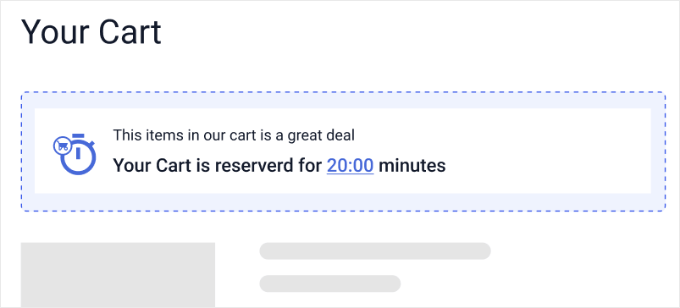
Adding a reservation timer helps in several ways:
Reduces ‘Tab Parking’: This is a common habit where users treat your cart like a temporary bookmark while they compare prices on other sites. A timer encourages them to finish the transaction now instead of leaving that tab open indefinitely.
Enforces True Scarcity: By automatically clearing the cart when the timer expires, you prove to your shoppers that the time limit is real. They must make a buying decision now rather than using the cart as a permanent bookmark.
Builds Professional Trust: This mirrors the high-end checkout experience used by airlines and ticket agencies.
Increases Conversions: The timer automatically handles the ‘nudging’ for you, which can lead to more sales even when you’re not actively working on your online store.
Instead of manually chasing down lost sales, this small change automates your checkout process. Here’s how to set it up on your website.
Step 1: Install and Activate the Merchant Plugin
Before we begin, make sure you already have the WooCommerce plugin installed and active on your website, as Merchant relies on it for the cart timer to work.
I specifically chose the Merchant toolkit because it’s an all-in-one WooCommerce growth tool. It offers dozens of modules to improve an online store’s functionality, which is much faster than installing several different plugins for each small feature.

Because Merchant Pro acts as an advanced extension to the free core plugin, you actually need to install two plugins for this to work. Merchant Pro adds the extra Cart Reserved Timer feature you will need for this tutorial.
First, you need to install and activate the free Merchant plugin directly from the WordPress plugin repository. Because ‘merchant’ is a common word, the easiest way to find the right one is to type ‘aThemes Merchant’ into the search bar.
Next, you need to download the Merchant Pro plugin from your account area and install and activate it on your WordPress site.
If you haven’t done this before, our guide on how to install a WordPress plugin shows you exactly how to search for free plugins and upload premium zip files.
Upon activation, you will need to enter your license key to unlock the premium modules. Simply head over to Merchant » Settings in your WordPress dashboard and look for the ‘License’ field.
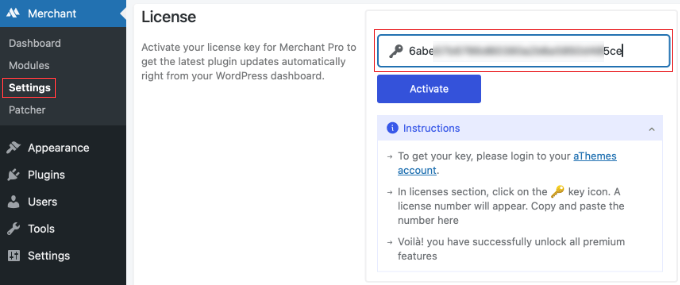
You can find this key in your purchase welcome email. Alternatively, you can log in to your aThemes account, go to the licenses section, and click the key (🔑) icon to reveal and copy your unique number.
Just paste that key into the settings field on your website and click the ‘Activate’ button, and you’ll be ready to start converting those hesitant customers.
Step 2: Change to the Classic WooCommerce Cart
If you recently installed WooCommerce, your store is likely using the new WooCommerce cart block by default. However, the Merchant timer requires the classic cart layout to display correctly.
Before you enable the Cart Reserved Timer module, you need to quickly swap the block on your Cart page. Don’t worry, this only takes a few seconds.
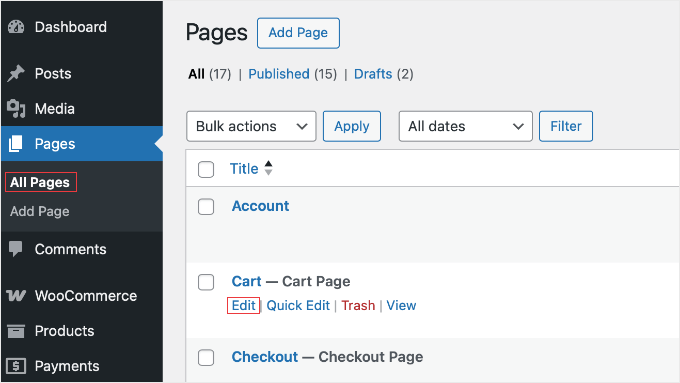
First, go to Pages » All Pages in your WordPress dashboard. From here, hover over your ‘Cart’ page and click the ‘Edit’ link.
Once you are inside the WordPress content editor, you need to delete the default cart. Because the WooCommerce cart is made up of many locked inner blocks (like ‘Cart Line Items’), the easiest way to remove the whole thing is by using the List View.
Simply click the Document Overview icon (it looks like three staggered lines) at the top left of the editor screen. This will open a list of all the blocks on your page.
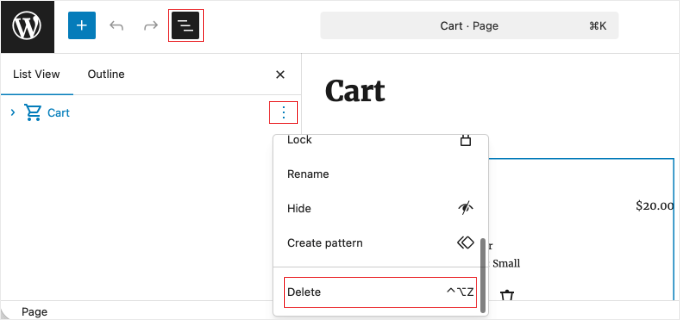
Find the main ‘Cart’ block in that list, click the three-dot menu next to it, and select ‘Delete’ to remove the entire block from your page.
Don’t worry, this only removes the visual layout. It does not delete your WooCommerce products or store data.
Next, click the ‘+’ block inserter icon to add a new block to your page. Search for the ‘Classic Cart’ block and click to add it to your layout.
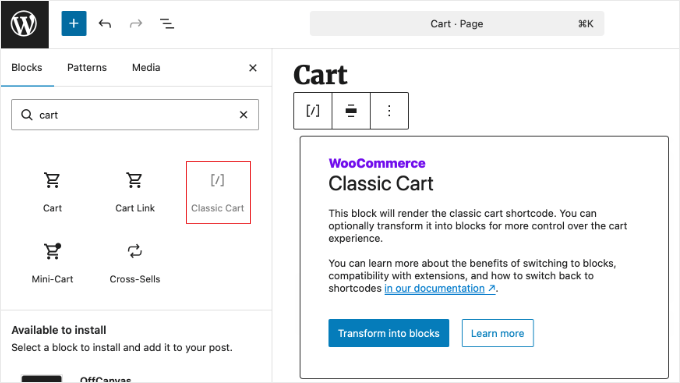
This is a built-in WooCommerce fallback block that acts exactly like the old shortcode. Once it is on your page, click the ‘Update’ button at the top right of the screen to save your new cart page.
Step 3: Enable the Cart Reserved Timer Module
Now that your cart is ready, it is time to turn on the timer. Head over to Merchant » Modules in your WordPress admin sidebar.
This screen displays a list of all the conversion tools included in the plugin, neatly sorted into categories. You should scroll down until you find the ‘Reduce Cart Abandonment‘ section.
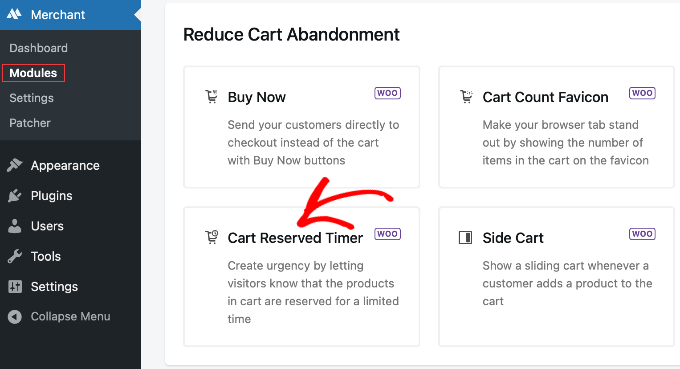
Here, you will see the ‘Cart Reserved Timer’ listed. Simply click on the module to open its specific settings page.
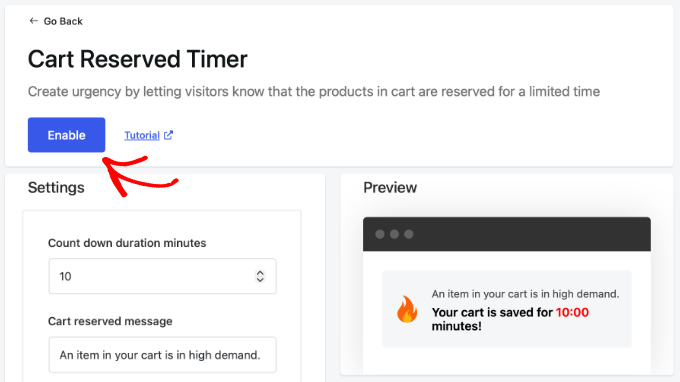
At the very top of the screen, you will see a toggle switch. Go ahead and click the ‘Enable’ button to turn the feature on for your store.
Step 4: Configure Your Reservation Rules
Now that the module is enabled, you can set the rules for how your countdown works. You will notice a handy preview pane on the right side of the screen that updates in real-time as you make changes.
First, you should enter your number in the ‘Count down duration minutes’ field.
I found that 10 minutes is the recommended sweet spot. It provides enough time for a customer to find their wallet without losing that sense of gentle urgency.
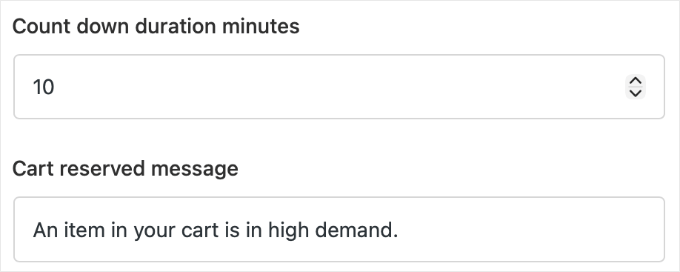
Expert Tip: If you are running a flash sale with very limited stock, I recommend shortening the timer to 5 minutes. This higher pressure works better when items might actually sell out while a customer is browsing.
Next, you can personalize your ‘Cart reserved message’. I suggest using a friendly header like: ‘Hurry! We are holding these items for you!’ to make the customer feel valued.
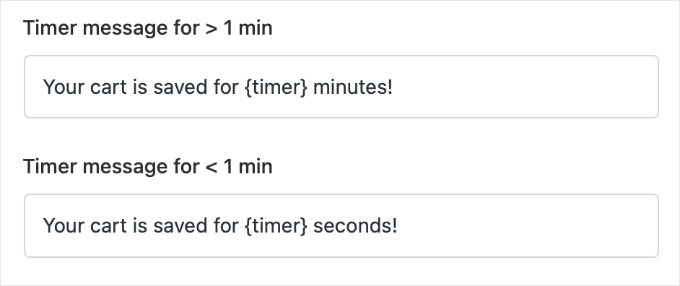
You then have two fields to customize the ticking clock: ‘Timer message for > 1 min’ and ‘Timer message for < 1 min’. This allows you to increase the urgency of the text as the clock runs out (e.g., changing ‘Minutes remaining’ to ‘Seconds remaining!’).
Make sure to leave the time-rendering tags in these fields so the live clock displays properly.
Finally, look for the ‘What to do after the timer expires?’ dropdown. This tells the plugin what to do when the clock hits zero.
If you sell popular items that sell out quickly, I highly prefer the ‘Clear Cart’ option. This makes sure that if a shopper walks away, their cart is cleared, which encourages them to complete the purchase within the time limit rather than using the cart as a temporary bookmark.
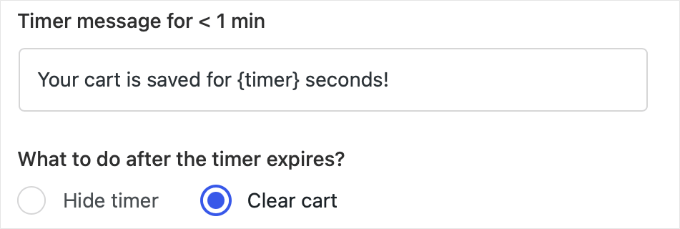
If the shopper tries to check out after the timer hits 0, then their cart will be empty, and they will need to add the items again.
Step 5: Styling the Timer to Match Your Brand
You want the timer to look like a natural part of your store rather than a clunky addon. Merchant makes this easy by giving you built-in design tools.
You can start by picking a visual cue from the ‘Choose an icon’ setting. Using a simple clock often works best.
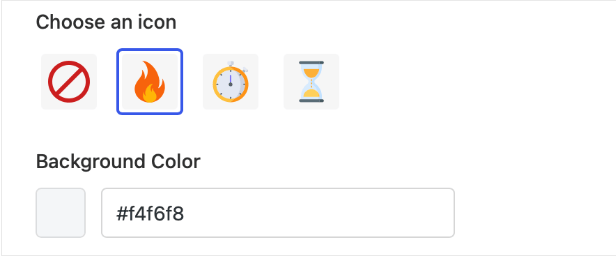
I recommend adjusting the ‘Background Color’ so it stands out from the rest of your page while still looking good with your WordPress theme design.
I noticed that using a high-contrast color, like a soft red or orange, easily grabbed the shopper’s attention and significantly increased clicks on the ‘Checkout’ button.
You can watch the preview pane on the right to see exactly how your color choices look.
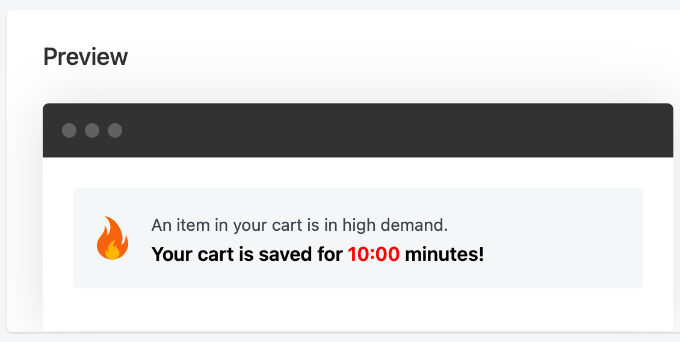
This simple visual change makes sure the message grabs the customer’s attention without looking like spam. When you are happy with the design, make sure to click the ‘Save’ button at the top of the page to lock in your settings.
Step 6: Testing the Merchant Experience
Before you consider the job done, you need to see exactly what your shoppers see. You should open your website in an ‘Incognito’ browser window and add a few items to your cart.
You should see the timer appear immediately on your Cart page. This makes sure that the nudge of urgency is clearly visible to the customer right when they are reviewing their items.
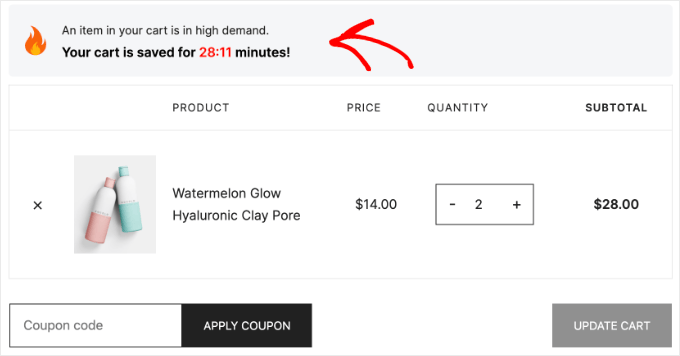
Finally, you should check your store on a physical smartphone. Make sure the timer bar is easy to see and doesn’t cover up important buttons like ‘Place Order’ or ‘Checkout’.
Testing on a real phone is the only way to make sure your layout is easy to use for the millions of people who shop on mobile devices. Once you confirm it looks great, your new automated recovery system is live.
Bonus Methods to Reduce Cart Abandonment in WooCommerce
Adding a reservation timer is a good start, but it is just one part of a complete recovery plan. To truly grow your revenue, you should look at other ways to catch customers before they disappear.
Here are a few other effective methods to recover lost sales:
Exit-Intent Popups: Use a tool like OptinMonster to detect when a user is about to leave and offer a discount to stay.
Recovery Emails: Remind users about their forgotten items using automated emails.
Push Notifications: Use a tool like PushEngage to send a browser alert to nudge hesitant shoppers back to your store.
Guest Checkout: Allow customers to buy products without creating a new account.
Visible Cart Icons: Make sure your shopping cart is noticeable on every page so users don’t forget their items.
You can see all of the proven strategies I use to grow my stores in my guide on how to recover WooCommerce abandoned cart sales.
Frequently Asked Questions About WooCommerce Cart Timers
If you still have concerns, here are answers to some of the most common questions I get about WooCommerce cart timers.
1. What is a cart reserved timer in WooCommerce?
A cart reserved timer is a conversion optimization tool for WooCommerce stores. It displays a live countdown clock to shoppers, letting them know their items are temporarily saved.
This creates a psychological sense of urgency, which helps reduce cart abandonment rates and increases overall sales.
2. Does a WooCommerce cart timer work on mobile devices?
Yes, the Merchant cart reserved timer is fully responsive.
The countdown automatically adjusts its layout to fit perfectly on smartphones and tablets without blocking the WooCommerce checkout buttons.
3. Will adding a reservation timer slow down a WordPress website?
No, the Merchant plugin is built for performance. It only loads the necessary timer script on your specific WooCommerce cart and checkout pages, making sure the rest of your WordPress website stays fast for regular browsing.
4. Can store owners hide the cart timer on specific WooCommerce products?
Currently, the Merchant Cart Reserved Timer module applies globally to the entire WooCommerce store. This makes sure you provide a consistent, predictable checkout experience for all shoppers on your site.
5. What happens to the WooCommerce inventory when the timer expires?
Nothing happens to your actual inventory, because standard WooCommerce does not hold or reserve stock when an item is simply sitting in a cart.
However, if you selected the ‘Clear Cart’ action in the Merchant plugin, the items are automatically removed from the shopper’s cart when the clock hits zero.
This enforces the deadline and means the customer will have to add the items all over again if they still want to buy them.
6. Does the timer reset if a customer adds another item to their cart?
Yes, the timer starts over every time a new product is added to the cart. This gives your shopper enough time to keep browsing your store without the clock running out while they look at more items.
Additional Resources for WooCommerce Stores
I hope this tutorial helped you add a cart reserved timer to your WooCommerce store.
Now that you’ve put this automated recovery system in place, here are some other helpful guides to keep improving your online store:
If you liked this article, then please subscribe to our YouTube Channel for WordPress video tutorials. You can also find us on Twitter and Facebook.